
How to Access Your Deriv Account Easily
🔒 Learn how to access your Deriv account hassle-free, fix login issues, keep your details safe, and explore key features tailored for South African traders 🇿🇦
Edited By
Edward Blake
MetaTrader remains a go-to platform for many traders, investors, and financial analysts across South Africa and beyond. Its reputation stems from user-friendly design combined with powerful trading tools. If you’re planning to trade forex, CFDs, or other financial instruments on your PC, understanding how to install and navigate MetaTrader is crucial.
This guide focuses on MetaTrader’s PC application — the environment where many traders work because of its stability, larger screen space, and easy access to advanced charting tools compared to mobile versions.
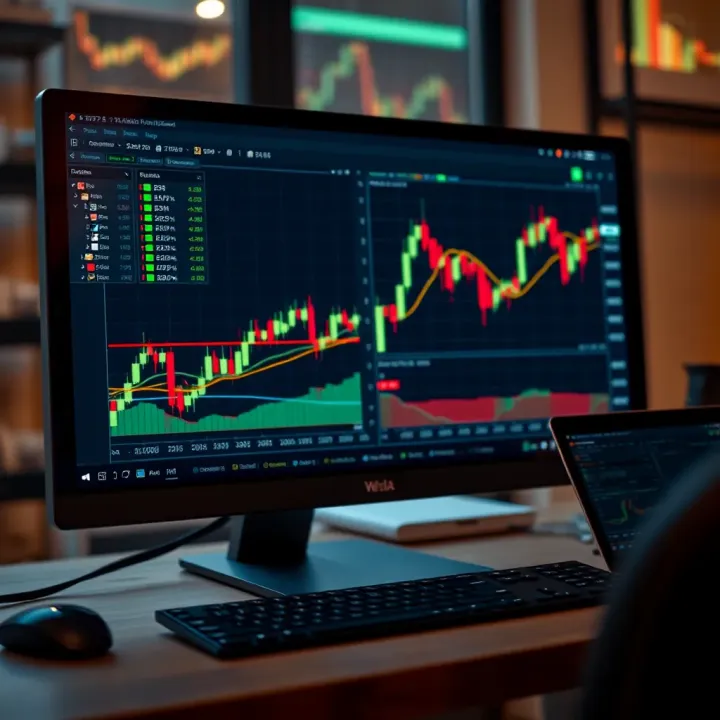
MetaTrader’s accessibility and comprehensive features make it suitable for beginners and seasoned traders alike, helping you make informed decisions on the JSE or global markets.
Robust Performance: PC setups tend to handle continuous live market data better than mobiles, preventing freezing or delays.
Advanced Charting: You get a full suite of technical analysis tools, custom indicators, and multiple chart windows running simultaneously.
Expert Advisors (EAs): Automated trading scripts run efficiently on desktops, allowing for backtesting and live automation without interruptions.
Customisation: PCs let you tweak layout preferences more freely than apps designed for smaller screens.
Most South African brokers support MetaTrader 4 or MetaTrader 5 on PC, which lets you trade popular pairs like USD/ZAR or CFDs on the JSE Top 40. Data connectivity can be a concern due to load-shedding or limited broadband in some areas, but offline charts and demo accounts help you practice without risking real money.
Make sure you download MetaTrader from your broker's official site or a trustworthy provider, avoiding unofficial or pirated versions that might expose you to malware or unreliable connections.
This guide will expand on: setting up MetaTrader on your PC, key features to explore, and tips to get the most out of your trading experience in the South African market.
With solid groundwork, you’ll be ready to fine-tune your trading strategies efficiently and securely using MetaTrader’s tools on your PC.
Starting off with MetaTrader on your PC might seem like a small step, but it sets the tone for your entire trading experience. This phase is where you lay the groundwork—installing the right software, setting up accounts properly, and connecting to trustworthy brokers. For South African traders, this means making sure your setup is stable, secure, and fits within the realities of local internet speeds and regulatory requirements.
Getting MetaTrader from official sources is key to avoiding malware or outdated versions. The MetaTrader 4 and 5 platforms are widely used, each with its own strengths. MT4 is suited for forex and simpler trading, while MT5 offers more assets like stocks and futures. You should pick based on your trading needs. Avoid third-party downloads and always get the software directly from the MetaTrader website or from your broker’s platform.
Before installing, check your PC meets the system requirements: a Windows 7 or newer OS, at least 2GB RAM, and enough free disk space (around 500 MB). This ensures your platform won’t lag when you need fast trade execution. PCs running multiple trading apps simultaneously might need more RAM for smooth operation.
The installation itself is straightforward—download the installer, run it, and follow prompts. Choose the folder carefully (default locations usually work fine). Once done, launch MetaTrader, and you’ll be ready to begin customising your workspace and linking your accounts. This uncomplicated step saves you headaches down the line.
Choosing between a demo and a real account depends on your comfort and experience. Demos let you practice with virtual money, which is ideal for new traders wanting to learn the ropes without risking Rands. Real accounts require funding but guard against guesswork with real market exposure.
After account registration, activating MetaTrader with your login details connects you to live market data and order execution. Inputting the right server information is crucial here—errors can prevent you from accessing your account. Keep your login credentials secure; phishing scams targeting South African traders have increased recently.
Linking your MetaTrader account to a reputable South African broker ensures compliance with local regulations and smoother fund transfers. Brokers such as IG, Plus500, and more localised ones like EasyEquities offer integration with MetaTrader, supporting rand deposits and withdrawals. This localised connection reduces delays and makes managing your trading activities simpler and safer.
Starting properly with MetaTrader on your PC means you trade with confidence, backed by a stable platform and trustworthy connections.
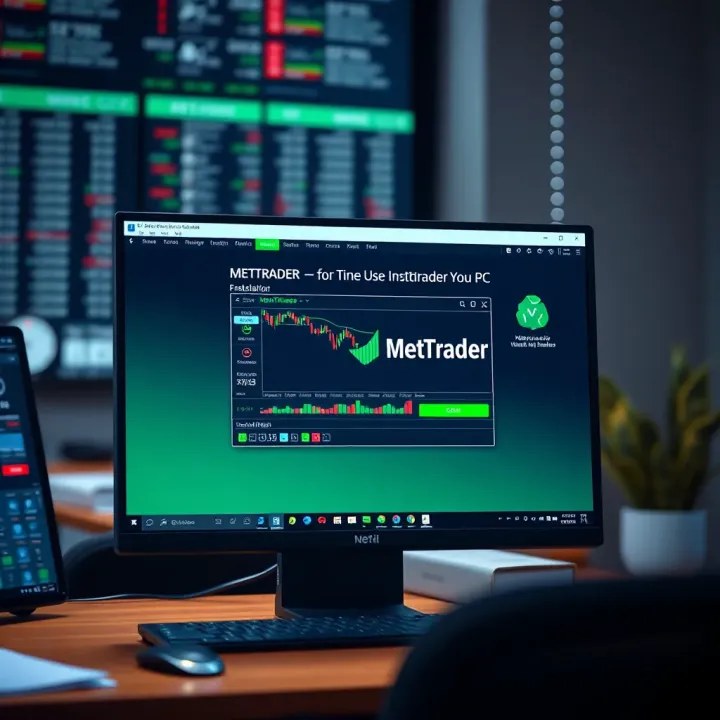
Knowing your way around MetaTrader’s interface is a big help for any trader. It’s not just about clicking buttons — understanding each window and panel means you can make quicker, smarter decisions without fumbling through menus. For South African traders, being comfortable with the layout can save precious time, especially when the markets are volatile.
The Market Watch window is where you’ll get a live snapshot of the instruments you’re interested in. It lists currency pairs, indices, commodities, and more, showing real-time prices. This window is handy for spotting quick changes or deciding what to focus on next. You can also add or remove assets here, tailoring it to your trading style.
Price charts bring those numbers to life, visualising market behaviour over time. MetaTrader offers various chart types—line, bar, or candlestick—each revealing different patterns. For example, candlesticks can show daily highs and lows clearly, which traders use to spot trends or reversals. Customising your charts to show local market hours or preferred indicators helps you make sense of the noise quickly.
The Terminal window acts like your command centre. It displays open trades, pending orders, account balance, and trading history. This is where you track how well your strategy is doing in real time. Plus, it lists alerts and messages, so you never miss important updates from your broker or platform.
For instance, if you have a stop-loss order activated, the Terminal window will show if it’s triggered, allowing you to respond swiftly. Keeping an eye on this panel reduces the chance of missing critical shifts in your trades, especially amid loadshedding or unstable internet.
The Navigator offers quick access to your trading accounts, custom indicators, Expert Advisors (automated trading bots), and scripts. You can switch accounts without exiting MetaTrader, which is handy if you manage multiple portfolios or demo versus live accounts.
It’s also the spot to organise your favourite tools. If you use a particular RSI or MACD indicator regularly, you can store it here for easy access. For South African traders, integrating brokers aligned with local regulations here can streamline your setup.
You’re not stuck with a one-size-fits-all screen. MetaTrader lets you open multiple charts at once, each with different instruments or timeframes. Say you’re watching the USD/ZAR pair on a daily chart while analysing gold prices on an hourly chart – you can have both open and visible.
Adding indicators is straightforward too. You drag and drop your preferred tools onto charts to help spot trends or entry points. Equally, you can remove what you don’t need to keep things tidy. A clean workspace cuts down distraction and helps you focus on what matters.
Once you’ve crafted a workspace that works for you, don’t lose it. Templates save your chart configurations — which indicators, colours, timeframes you use — so you can apply them quickly to new charts. Profiles go a step further by storing entire layouts, including open charts and window arrangements.
This means after a system reboot or a break, you can pick up right where you left off without having to rebuild your setup. For busy traders juggling multiple markets, this is a real time-saver.
Trading isn’t just about what you see but when you see it. Changing the timeframe on a chart lets you switch between tick-by-tick movements or broader trends over days or weeks. For example, day traders may look at 5-minute charts, while swing traders prefer daily or weekly views.
You can also tweak colours, gridlines, and fonts to make charts easier on your eyes during late-night sessions. Custom visuals are especially useful when trading over different South African time zones or during winter months when daylight is limited.
Getting a grip on MetaTrader’s interface isn’t about bells and whistles; it’s about crafting a space that suits your trading habits and makes navigating the markets simpler and quicker. Start small, focus on the windows and panels that’ll improve your workflow, and adjust as you go along.
MetaTrader's toolkit is essential for turning analysis into action. Understanding how to place and manage trades, as well as using technical indicators and automation, empowers you to make smarter, quicker decisions. This section gets into the nuts and bolts you’ll need from opening your first order to running automated trading helpers.
Opening, modifying, and closing orders are the basic steps in executing your strategy. When you open an order, you decide the asset, position size, and direction (buy or sell). On MetaTrader, this usually happens from the Market Watch or chart window. Once your trade is live, you might want to adjust it. Modifying a trade lets you change your stop-loss or take-profit levels or even switch order types, such as converting a pending order to a market order. Closing an order finalises the trade, locking in profit or limiting loss.
Setting stop-loss and take-profit levels is a key risk management tactic. A stop-loss automatically closes your position if the price goes against you by a set amount, preventing excessive losses. Conversely, take-profit locks in gains once the price hits a target you’re happy with. For example, if you buy USDZAR at 17.50 expecting it to rise, you might set a take-profit at 17.80 and a stop-loss at 17.30. MetaTrader makes adjusting these levels straightforward — you just drag them on the chart or enter values directly.
One-click trading speeds up your response time, which can be crucial during volatile markets. Enabling this feature lets you open or close positions with a single click straight from the chart or Market Watch without going through multiple windows. It’s handy when the rand suddenly moves on local events or during news releases that shake currency pairs. However, one-click trading demands caution — it’s easier to make hasty decisions, so only use it when you’re confident.
Technical indicators help you read price action trends and signals without guesswork. Common indicators like Moving Averages, RSI (Relative Strength Index), and Bollinger Bands are bundled with MetaTrader and can be customised to suit your style. For instance, an RSI pointing above 70 might signal overbought conditions on the JSE Top 40, prompting you to prepare for a possible downturn. These tools offer visual cues that complement your fundamental knowledge.
Automated trading systems, known as Expert Advisors (EAs), take automation a step further. They execute trades based on coded rules without your intervention. This is useful if you prefer a hands-off approach. Installing an EA involves loading its file into MetaTrader’s directory, then activating it on your chart. Many local brokers offer EAs tailored to South African market peculiarities, such as volatility triggered around Budget Day or SARB interest rate announcements.
Scripts and custom tools extend MetaTrader’s functionality. Scripts perform single tasks quickly — like closing all open trades at once — while custom tools can add new indicators or tweak interface elements. Managing these requires some familiarity with MetaTrader’s file structure and, often, basic coding knowledge in MQL4/5. For example, if you frequently trade pairs affected by Eskom news updates, you might use a script to instantly set risk parameters across all related trades.
Effective trading on MetaTrader isn’t just about placing orders; it’s about managing risk, timing entries and exits, and leveraging automation to stay ahead in dynamic markets. Knowing your tools well makes the platform work harder for you.
To get the most out of MetaTrader on your PC, it's essential to fine-tune your setup for both smooth operation and security. Traders often run into sluggish performance or unexpected errors that can cost time—sometimes even profits. This section covers practical ways to keep MetaTrader stable, fast, and safe, especially important for South African traders who deal with local internet constraints and cyber risks.
Handling updates and backups is more than a routine task; it's a safety net. MetaTrader regularly releases updates that patch security holes or improve performance. Ignoring these risks exposing your PC to bugs or attacks. Schedule update checks when you're done trading for the day to avoid interruptions. Likewise, back up your important data like profiles, settings, and templates to an external drive or cloud service like OneDrive or Google Drive. Imagine losing your custom chart setups just before a major trade—that’s a headache easily avoided.
Managing data usage and chart histories ensures your MetaTrader doesn’t get bogged down. Every chart loads historical price data, which can pile up and slow things down, especially if you open multiple charts with many indicators. Periodically clear old history files in the platform’s data folder or limit the history depth in settings. This kind of housekeeping avoids unnecessary strain on your PC and keeps your charts responsive.
Troubleshooting common issues saves valuable time when things go sideways. Frequent problems include platform freezing, connection drops, or error messages when placing trades. First, check if your internet connection is stable—the usual culprit in South Africa, with data caps or intermittent coverage. Restarting MetaTrader and your PC resolves most glitches. If problems persist, reinstalling the platform or refreshing your account login often fixes corrupted files or credentials.
Protecting your login credentials is fundamental. Never save your password in an easily accessible file or share it. Use strong, unique passwords and consider a reputable password manager. Always log out after finishing a session, especially on shared or public PCs. This simple habit can prevent unauthorised access to your trading account.
Recognising phishing and scam risks is critical in today’s online landscape. South African traders may receive fake emails or messages impersonating brokers or MetaTrader support, asking for login details or urging urgent downloads. Always verify sender information and avoid clicking unknown links. For instance, if you get a message claiming your account is suspended but you didn't request anything, double-check the broker’s official channels instead of reacting immediately.
Backing up templates and configurations should be part of your regular workflow. Custom indicators, Expert Advisors (EAs), and chart templates represent time and strategy investments. Export these files and save them externally, so if your PC crashes or you switch devices, you’re not starting from scratch. This practice also allows quick restoration after reinstalling MetaTrader, ensuring minimal disruption.
Keeping MetaTrader running smoothly isn’t just about speed; it’s about trustworthiness and security. Combining technical optimisations with solid security habits helps you avoid avoidable losses and keeps your trading sharp in a local environment where connectivity and cyber threats can vary widely.
🔒 Learn how to access your Deriv account hassle-free, fix login issues, keep your details safe, and explore key features tailored for South African traders 🇿🇦

Discover how brokers offer welcome bonuses, what to watch out for, and tips for South African traders to wisely choose bonus deals 🎯🇿🇦
📈 Get a clear look at indices trading—learn how to trade popular indexes, manage risks, and navigate the market with practical tips relevant for South African investors.

📈 Get to know the 28 major forex pairs, their key drivers, and practical tips for South African traders looking to trade forex confidently and wisely 🇿🇦
Based on 10 reviews